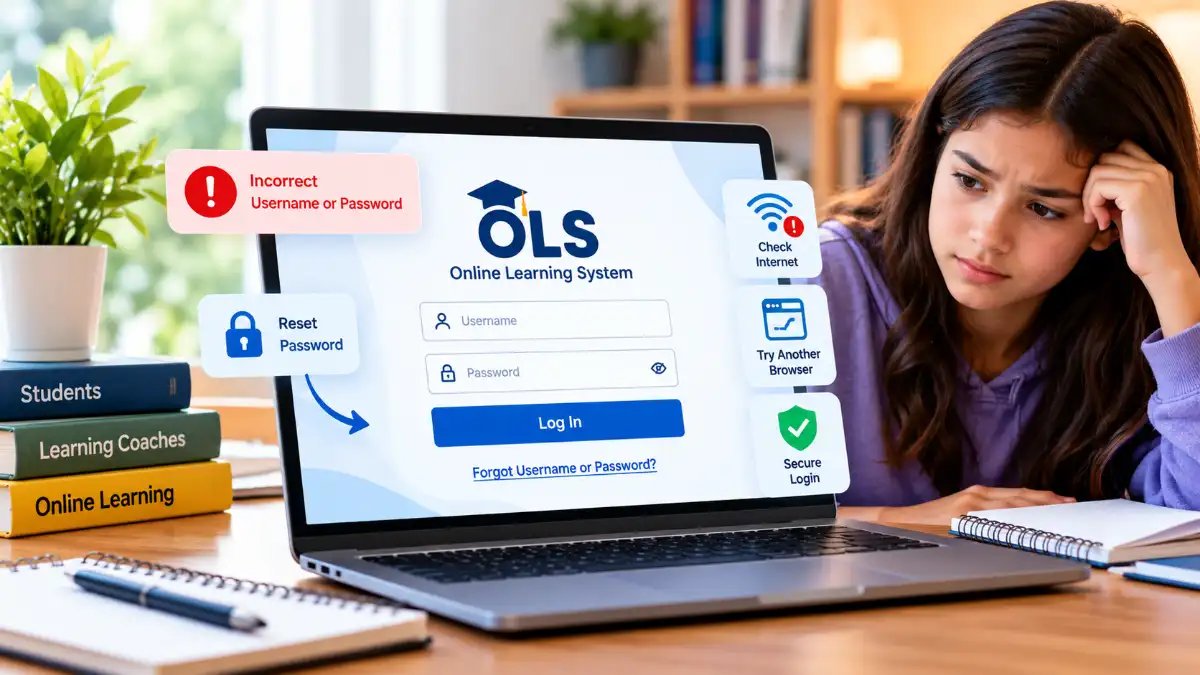
OLS Login: How to Fix K12 Sign-In and Account Problems
If your OLS login is not working, open the official K12 School (OLS) login page, enter your assigned username and password, and select Sign In. Students and Learning Coaches who cannot access their accounts can use Need Help Logging In? to recover forgotten credentials. If your information is correct but access still fails, check your browser settings, saved sessions, and possible K12 service interruptions.
Before trying more complicated fixes, follow this quick troubleshooting checklist:
- Check your username and password for typing mistakes.
- Turn off Caps Lock and remove accidental spaces.
- Select Need Help Logging In? to recover forgotten credentials.
- Try an updated version of Google Chrome.
- Clear your browser’s cache and cookies.
- Check the official K12 system status notices for service interruptions.
These steps help distinguish account problems from browser errors or temporary service disruptions without making unnecessary changes to your account.
How to Access Your K12 OLS Account
K12 Online School (OLS) provides students and Learning Coaches with access to school-related resources and learning activities. Each user should sign in with their assigned credentials.
To complete the OLS login process:
- Open the official K12 School login page.
- Enter your assigned username.
- Type your password carefully.
- Select Sign In.
- Navigate to your courses or school resources.
Depending on the student’s school and grade level, course access may involve K12 Launch Pad.
If signing in fails, verify your account information before attempting multiple password resets. Students and Learning Coaches have separate accounts, so make sure you are using the correct credentials.
How to Recover a Forgotten OLS Username or Password
K12 provides separate recovery options for forgotten usernames and passwords. Start by selecting Need Help Logging In? on the official sign-in page.
Recover Your Forgotten Username
If you cannot remember your username, follow the official username recovery process:
- Select Forgot Username?
- Enter the personal email address associated with your account when requested.
- Select Send Username.
- Check your email for recovery instructions.
- Use the recovered username to attempt signing in again.
Check your spam or junk folder if the message does not appear in your inbox.
If you no longer have access to the registered email address, contact K12 technical support for assistance.
Reset Your Forgotten Password
If you remember your username but cannot remember your password:
- Choose Forgot Password? from the login recovery options.
- Complete the requested account verification.
- Follow the password-reset instructions provided.
- Create a new password according to the displayed requirements.
- Return to the login page and sign in.
If the recovery message does not arrive, confirm that you are checking the email account associated with your K12 profile.
Never share password-reset messages or verification codes with other people.
How to Fix Common OLS Login Problems
When your credentials appear correct, the next step is to identify whether the problem comes from your account or browser.
Invalid Username or Password
An Invalid Username or Password message generally means the submitted credentials were not accepted.
Check spelling, capitalization, accidental spaces, and similar-looking characters. Passwords are case-sensitive, so uppercase and lowercase letters must match exactly.
If you recently transferred to another K12-powered school, your previous login details may no longer work. Some transfers require new account setup instructions. Check your registered email, including the spam folder, for an account registration message.
If your OLS login continues to reject your credentials, use the official recovery options instead of creating an additional account.
Browser Cache and Cookie Problems
Stored browser data can sometimes interfere with authentication and prevent a successful sign-in.
Try these steps:
- Open your browser settings.
- Find Delete browsing data or the equivalent option.
- Select cached files and cookies.
- Clear the selected information.
- Close and restart your browser.
- Attempt to sign in again.
In Chrome, press Ctrl + Shift + Delete on Windows or Command + Shift + Delete on Mac to open the browsing-data controls.
Clearing cookies may sign you out of other accounts, so make sure you know their passwords beforehand.
Unsupported or Outdated Browser
K12 recommends Google Chrome for accessing its online school systems.
An outdated browser or restrictive configuration may interfere with authentication. Install available updates, restart the browser, and try again.
If your OLS login still fails, test another browser or device. This can help identify whether the problem is limited to your usual computer.
How to Check Whether K12 OLS Is Down
Sometimes K12 online school login problems result from scheduled maintenance or an unexpected service interruption.
Check the official K12 system status notices available through the K12 Help Site before changing account settings.
The following table can help narrow down the problem:
| Login problem | Possible cause | Recommended action |
| Login fails in one browser | Stored data or browser settings | Clear cache and cookies |
| Login fails on one device | Device-specific problem | Try another computer |
| Login fails across devices | Account issue or possible outage | Check credentials and status notices |
| Maintenance notice appears | Reported service disruption | Follow official updates |
| Another account works | Account-specific problem | Use recovery options |
A failed login across multiple devices does not automatically mean the platform is down. Network problems or incorrect credentials can produce similar results.
If an official maintenance notice confirms an interruption, follow the published updates instead of repeatedly resetting your password.
How to Switch OLS Accounts on a Shared Computer
Families with multiple students may encounter sign-in problems when a browser retains another student’s session.
Each student should use their own account so assignments, grades, and learning progress remain associated with the correct profile.
To switch accounts safely:
- Sign out of K12 Launch Pad.
- Open Account in OLS and select Logout.
- Close the browser window completely.
- Open a new browser window.
- Sign in using the next student’s credentials.
Closing a browser tab alone may not end the previous session. Always complete the logout process before switching users.
Avoid saving shared passwords in a common browser profile, particularly when several students use the same computer.
When to Contact K12 Technical Support
If account recovery and browser troubleshooting do not resolve the problem, contact K12 technical support.
Approved families can call 866-512-2273 for assistance with K12 School (OLS) accounts and related technical issues.
Before contacting support, prepare:
- The student’s school name.
- Whether the affected account belongs to a student or Learning Coach.
- The exact error message displayed.
- The browser and device being used.
- The troubleshooting steps already attempted.
Explain whether the problem occurs on one device or several. This helps support staff investigate account-specific and technical problems.
Never disclose your password or verification codes.
How to Keep Your OLS Account Secure
Use a unique password, maintain access to your recovery email, and avoid sharing login credentials with classmates or siblings.
Always sign out after using a shared computer. If you suspect unauthorized access, change your password through the official recovery process and contact support if necessary.
For unresolved OLS login issues, rely on the official account recovery options and support team rather than unofficial login services.
Frequently Asked Questions
Incorrect credentials, outdated browsers, saved sessions, or temporary service interruptions may prevent access. Check your account information, browser settings, and official K12 status notices.
Select Need Help Logging In? on the official login page, choose Forgot Password?, and complete the account verification and password-reset instructions.
Select Forgot Username? through the official recovery options. Enter the personal email address associated with your account and follow the instructions provided.
This message may appear because of capitalization mistakes, incorrect credentials, or account changes following a school transfer. Verify your information and use recovery options if necessary.
Google Chrome is recommended for K12 School. Keep your browser updated and clear cookies and cached files if sign-in problems continue.
Review the System Status section on the official K12 Help Site. Testing another browser or device can help determine whether the issue is local.
Yes. Each student needs their own account. Fully sign out of K12 Launch Pad and OLS before signing in with another student’s credentials.
Contact K12 technical support at 866-512-2273. Describe the login error, affected account, device, and troubleshooting steps you have already attempted.