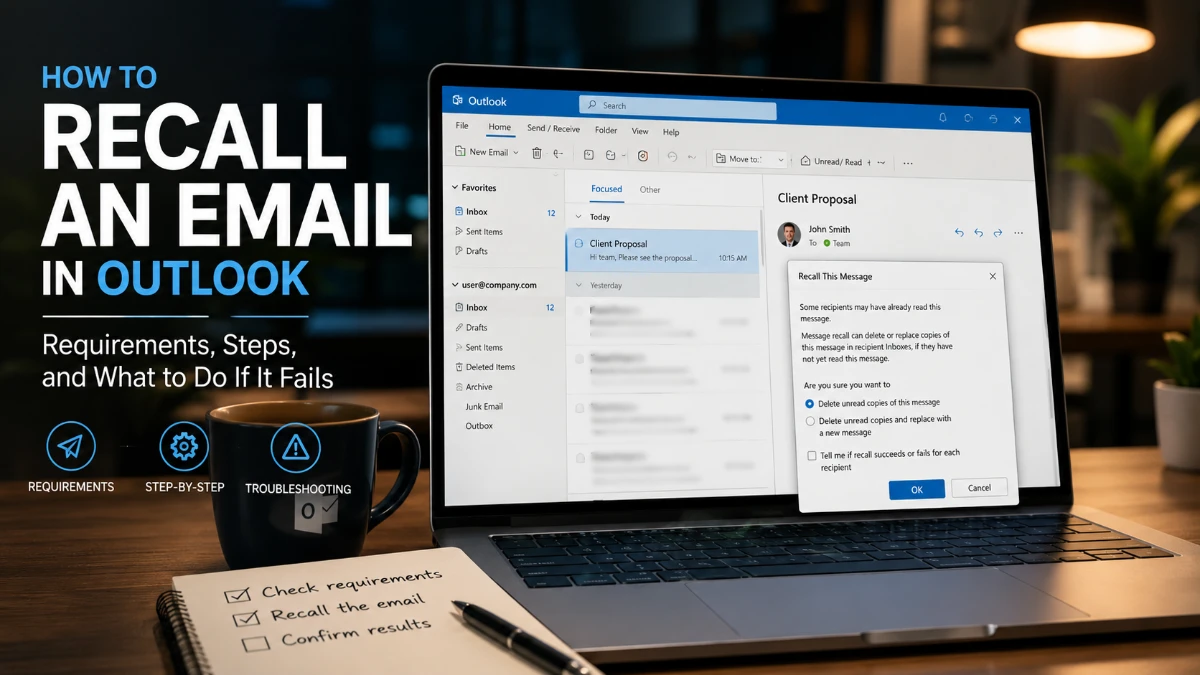
How to recall an email in Outlook: All Versions, Requirements & Fixes
Yes, you can recall an email in Outlook, but only under specific conditions. If you want to know how to recall an email in Outlook, the essential requirement is this: both you and the recipient need a Microsoft 365 work or school account in the same organization. Traditionally, the message also had to be unread, but a 2026 update to the new Outlook now lets admins allow recall of messages that have already been read, within a set time window. If any of these conditions aren’t met, the recall attempt will fail, and you’ll need a backup plan, which this guide also covers.
Personal accounts like Gmail, Hotmail, or Outlook.com cannot use message recall at all. If you’re on a personal account, the Undo Send delay feature is your realistic alternative, and we’ll walk through the exact delay windows for each platform later in this guide.
What Recall Actually Does (and When It Works)
Message recall in Outlook attempts to delete an unread copy of a sent email from the recipient’s inbox or replace it with a corrected version. Classic Outlook’s recall runs on the client and only succeeds around 40 percent of the time. New Outlook’s recall feature, by contrast, runs in the cloud through Exchange Online and reaches roughly a 90 percent success rate, largely because it no longer depends on the recipient having Outlook open at the moment of recall.
Requirements to recall a message
Before you attempt to recall an email in Outlook, confirm these conditions apply:
- Both sender and recipient must have Microsoft 365 work or school accounts within the same organization.
- In classic Outlook, the message must still be unread by the recipient.
- In new Outlook, an admin can optionally enable recall of already-read messages and can set a maximum recallable message age (default 365 days, adjustable from 5 minutes to 10 years).
- The feature works across classic Outlook, new Outlook, Outlook on the web, and Outlook for Android/iOS, as long as the account requirement above is met. Recall is not currently available in Outlook for Mac.
- Recall generally cannot cross organizational boundaries, though Microsoft has begun rolling out cross-tenant recall for organizations that explicitly allow it.
When recall will not work
Recall fails or isn’t available when the recipient uses a personal email account, when the recipient is on a different organization’s tenant without cross-tenant recall enabled, when the message was forwarded manually or through an inbox rule, or when the mailbox is hosted on-premises rather than in Exchange Online. In classic Outlook, specifically, recall also fails once the recipient has opened the message, unless your organization has enabled the new Outlook read-message recall setting.
How to Recall an Email in Outlook (Classic Desktop)
Classic Outlook for Windows is where most people first learn how to recall an email in Outlook, since it’s been part of the desktop client for years.
- Open the Sent Items folder and double-click the message you want to recall so it opens in its own window.
- On the ribbon, go to the Message tab, select the Actions dropdown, and choose Recall This Message. (If you have the Simplified Ribbon, look under More Commands, then Actions.)
- Choose either Delete unread copies of this message or Delete unread copies and replace with a new message.
- Check the box to receive a confirmation of the recall’s success or failure, then select OK.
Delete vs. delete-and-replace
The delete-unread-copies option simply removes the original from the recipient’s inbox if it’s still unread. The replace option does the same thing but then opens a new draft where you can fix the error and send a corrected version automatically to the same recipients.
How to Recall an Email in the New Outlook
New Outlook for Windows uses a cloud-based version of recall that’s meaningfully more reliable than the classic client-side feature, and the same organizational requirements apply.
Windows and web steps
- Open the new Outlook for Windows or Outlook on the Web, then double-click the sent message in the Sent Items folder.
- On the toolbar, find Recall Message under the Respond section, or click the three-dot More Actions menu and choose Recall Message under Advanced Actions.
- Confirm the action in the dialog box that appears, which warns that the message will be deleted from every recipient’s mailbox.
Because this version runs in the cloud, it can also recall messages sitting in sub-folders, not just the inbox, and it works even if the recipient’s own Outlook client isn’t open at the time.
Mac steps
Recall is not currently supported in Outlook for Mac, matching the limitation in classic Outlook. Mac users who need reliable message retraction should use Outlook on the Web instead, since the web client supports the same cloud-based recall available in new Outlook for Windows.
Recalling an Email in Outlook on the Web
Recall is fully available in Outlook on the web, using the same cloud-based mechanism as new Outlook for Windows. Open the sent message from Sent Items, then use the Recall Message option from the toolbar or the Advanced Actions menu, exactly as described in the new Outlook steps above.
Recalling an Email on Outlook Mobile
Message recall itself isn’t triggered from the Outlook mobile apps for iOS and Android, so if you need to recall a message sent from your phone, switch to Outlook on the Web or a desktop client to complete the recall. Mobile also has no delay-send setting, meaning messages sent from the app go out immediately with no built-in buffer.
How to Check If Your Recall Succeeded
After you submit a recall request through new Outlook or the web, expect a Message Recall Report by email within about 30 seconds; classic Outlook’s confirmation can take longer. The report separates results into three categories: Recalled, Pending, and Failed, and if a message was recalled but had already been read, the report will note that explicitly. The report link stays valid for about 7 days, and for very large recipient lists, generating the full status report can take 30 minutes or more.
Why Outlook Recall Fails (Common Reasons)
Recall attempts fail for a handful of predictable reasons:
- The recipient already opened the email, and your organization hasn’t enabled the new Outlook read-message recall setting.
- The recipient is on a personal account, such as Gmail, Yahoo, or Outlook.com, rather than a Microsoft 365 work or school account.
- The recipient belongs to a different organization’s tenant that hasn’t added yours to its recall allow list.
- The message was forwarded manually or moved by an inbox rule before recall could act on it.
- The recipient’s mailbox is hosted on-premises rather than in Exchange Online.
What to Do If Recall Fails or Isn’t Available
If recall fails, don’t wait on the outcome. Send a polite follow-up email as soon as possible explaining the mistake and, if relevant, attaching the corrected file or information. For sensitive errors, such as a wrong attachment or confidential content sent to the wrong person, it’s worth calling or messaging the recipient directly rather than relying solely on email, since they may have already read the message before you noticed the mistake.
Preventing Future Mistakes: Undo Send and Delay Delivery
Because even the improved recall feature isn’t guaranteed, most users find a delay-based safety net more dependable than recall itself.
| Platform | Delay type | Delay range | Setup location |
| New Outlook / Outlook on the Web | Global Undo Send | 5–30 seconds | Settings, then Mail, then Compose and reply |
| Classic Outlook | Global rule-based defer | 1 minute minimum, unlimited maximum | File, then Manage Rules & Alerts |
| Outlook for Mac | Per-email Delay Delivery | Set manually per message | Options tab, then Delay Delivery |
In new Outlook and Outlook on the Web, this Undo Send window works like Gmail’s undo feature: a toast notification appears after you click Send, and clicking it pulls the message back into drafts. Classic Outlook doesn’t have a true seconds-based Undo Send, but setting up a defer-delivery rule under Manage Rules & Alerts achieves the same effect with a minimum one-minute buffer. This approach works regardless of whether the recipient is on Microsoft 365 or a personal account, making it a more universal safety net than recall itself.
Frequently Asked Questions
In classic Outlook, no. In the new Outlook, it can work if your organization’s admin has specifically enabled the setting that allows recall of read messages.
Generally, no, unless your organization and the recipient’s organization have both enabled cross-tenant recall and added each other to an allow list.
You’re most likely on a personal Outlook.com account, since message recall requires a Microsoft 365 work or school account.
Undo Send is a short delay window that holds your email in the Outbox before it actually sends, while Message Recall attempts to retrieve a message after it has already been delivered.
New Outlook and web typically deliver a Message Recall Report within about 30 seconds, though classic Outlook confirmations can take longer, especially for large recipient lists.
No, recall is not currently available in Outlook for Mac; use Outlook on the Web instead for the same cloud-based recall capability.
In new Outlook, admins can set a maximum recallable message age, ranging from 5 minutes to 10 years, with 365 days as the default.
The unread copy is deleted from the recipient’s mailbox or replaced with your corrected version if you chose the replace option.
Recall isn’t triggered from the Outlook mobile app directly; switch to the web or desktop client to recall a message you sent from your phone.
Common causes include the recipient having already read the message, an inbox rule having moved it before recall could act, or the recipient’s mailbox being hosted on-premises rather than in Exchange Online.